
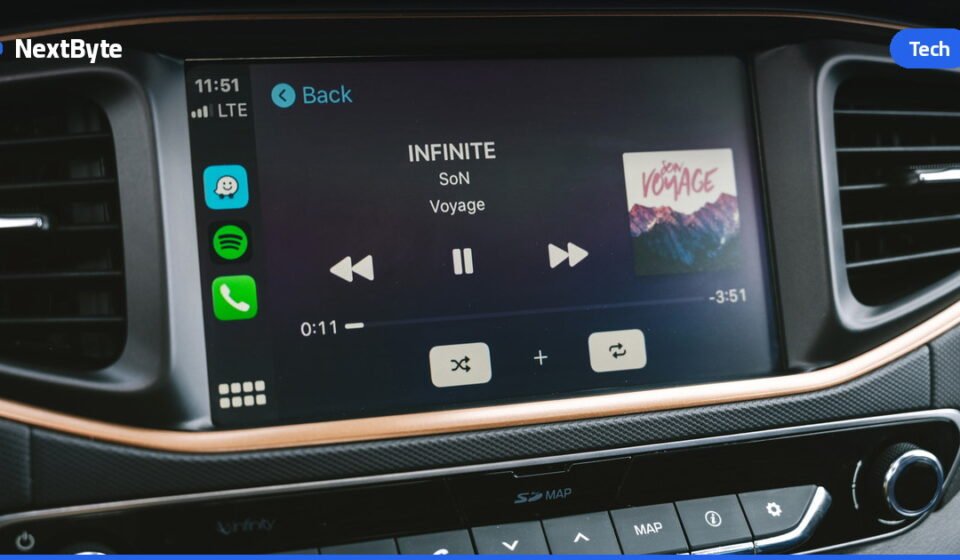

Apple CarPlay gives you an easy solution for playing your favorite music from Spotify or Apple Music in your vehicle. However, it isn’t guaranteed to deliver the best sound your car can produce. Your iPhone might feed the stereo a lower-quality stream than you expect, with settings that sound great through your headphones but awful through your car speakers. Improving Apple CarPlay audio quality doesn’t require expensive upgrades—a few straightforward tweaks can make a real difference.
Wired vs. Wireless: The Connection Matters for Apple CarPlay Audio Quality
The way your iPhone connects to your car has a significant impact on sound. Wireless CarPlay is the most convenient option for most people, but it isn’t the best choice if you demand the best music quality. Apple‘s own guidelines confirm that only a wired USB connection will allow you to play lossless audio. Lossless audio is compressed without throwing away any of the original audio data, meaning you’re not losing detail.
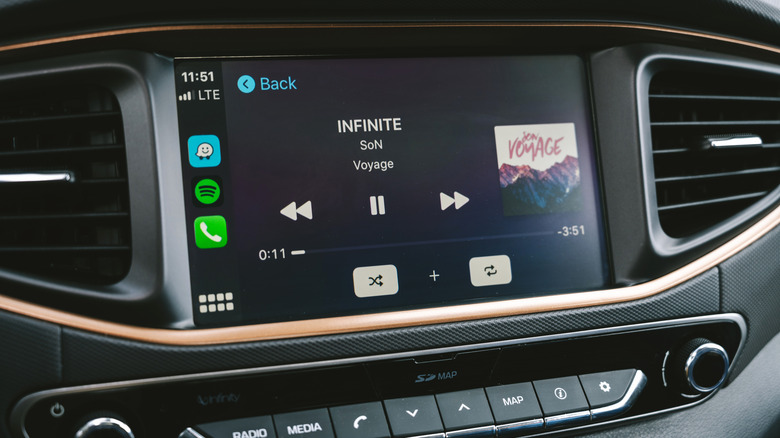
The difference comes down to codec technology. Apple uses LPCM for audio on wired CarPlay connections, but switches to AAC-LC when using wireless CarPlay. LPCM carries uncompressed digital audio, so a lossless ALAC track from Apple Music can be passed to your car without lossy compression. Wireless CarPlay has to encode the audio into AAC-LC first, using lossy compression to reduce the bitrate and discarding some of the original audio data. The end result is lower-quality audio, though whether you hear the difference depends on your car’s sound system and your ears. Road noise and other distractions mean your car isn’t the perfect listening environment anyway.
Download Music and Adjust Your Settings
A wired connection can only preserve the quality it receives in the first place. When you’re streaming from Apple Music or Spotify while driving, your mobile connection shifts between cell towers and dips in and out of coverage. Drops in connection mean drops in quality. The fix is simple: download your regular playlists to your iPhone before you set off. Apple Music lets you choose your preferred quality setting for downloads, including lossless at 24-bit/48kHz. This, while using wired CarPlay, will give you the best possible sound quality. Because lossless audio files take up significantly more storage than compressed equivalents, make sure you’ve got plenty of space available.
The audio settings for your chosen streaming app are another area to review. Apple Music has its own equalizer settings, which you can access through Settings > Apps > Music > EQ. A preset that works well with headphones probably won’t sound the same through your car’s speaker system. Apple Music also has a Sound Check mode, which is a normalization feature that automatically adjusts playback volume. You can set this by tapping Settings > Apps > Music and toggling Sound Check on or off. As covered earlier, Samsung Galaxy S26 FE vs S25 FE: Explaining the $50 Price Increase showed how small adjustments can yield meaningful improvements across different devices and platforms.
If CarPlay usually sounds fine but suddenly loses bass, volume, or clarity, an audio ducking bug might be the cause. CarPlay lowers the volume whenever Siri or your maps app speaks, and music can sometimes get stuck in this lowered state. Try activating Siri using your steering wheel control, then immediately hitting the button again to dismiss it. If problems persist, remove your device and re-pair it by going to Settings > General > CarPlay, selecting your car, then tapping Forget This Car. In a related development, Motorola Previews Android 15 Update and New Themed Icons highlighted how software updates and settings refinements continue to shape the mobile audio experience across platforms.
المصدر: Engadget